Grid & subgrid — UI guide
What every part of the grid editing surface does and how the pieces fit together. This is the user-facing tour; the deeper behavior reference — drag math, degradation, exact undo/cancel semantics — is the grid reference.
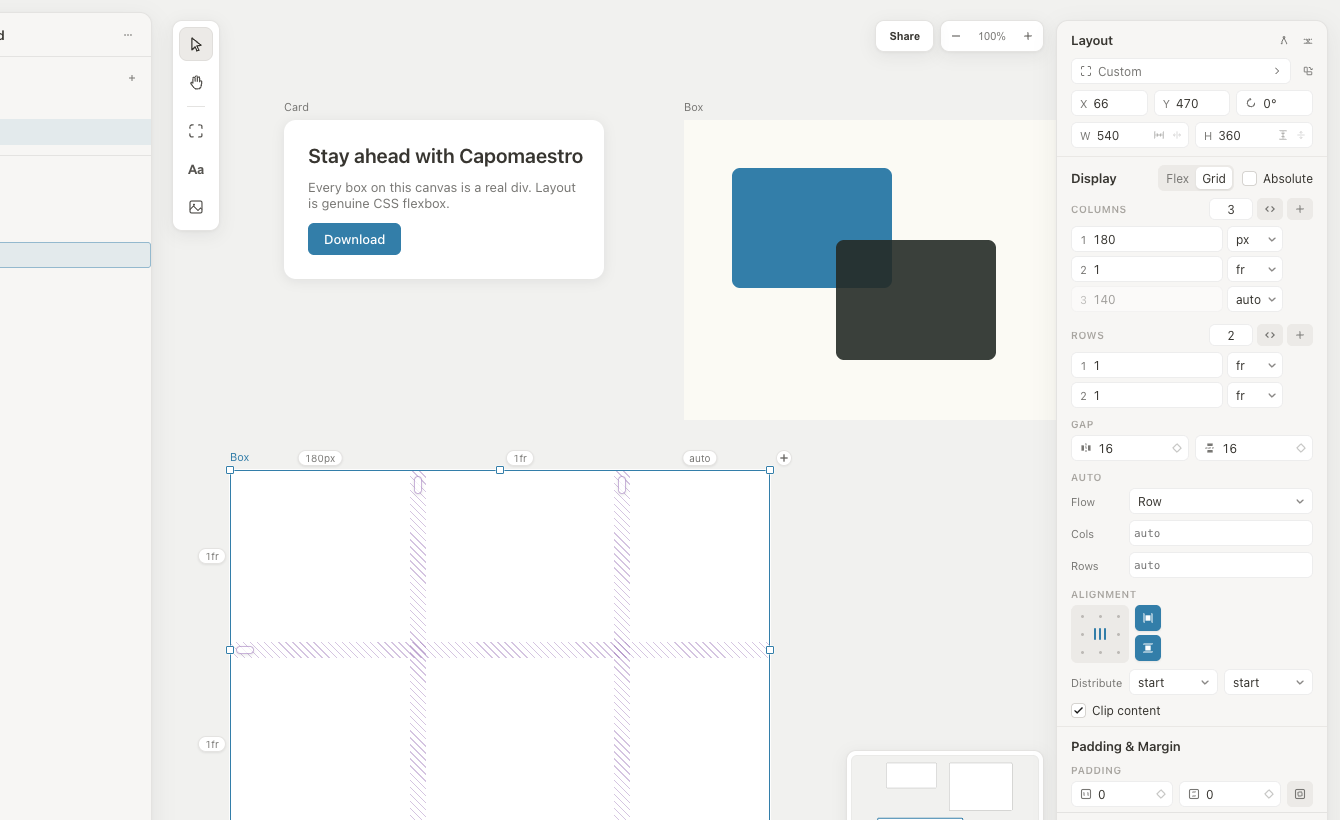
Draw a box (B) and switch Display to Grid. From that moment the same grid is editable in two places at once:
- the inspector (right) shows the grid as structured controls — track lists, gap, alignment;
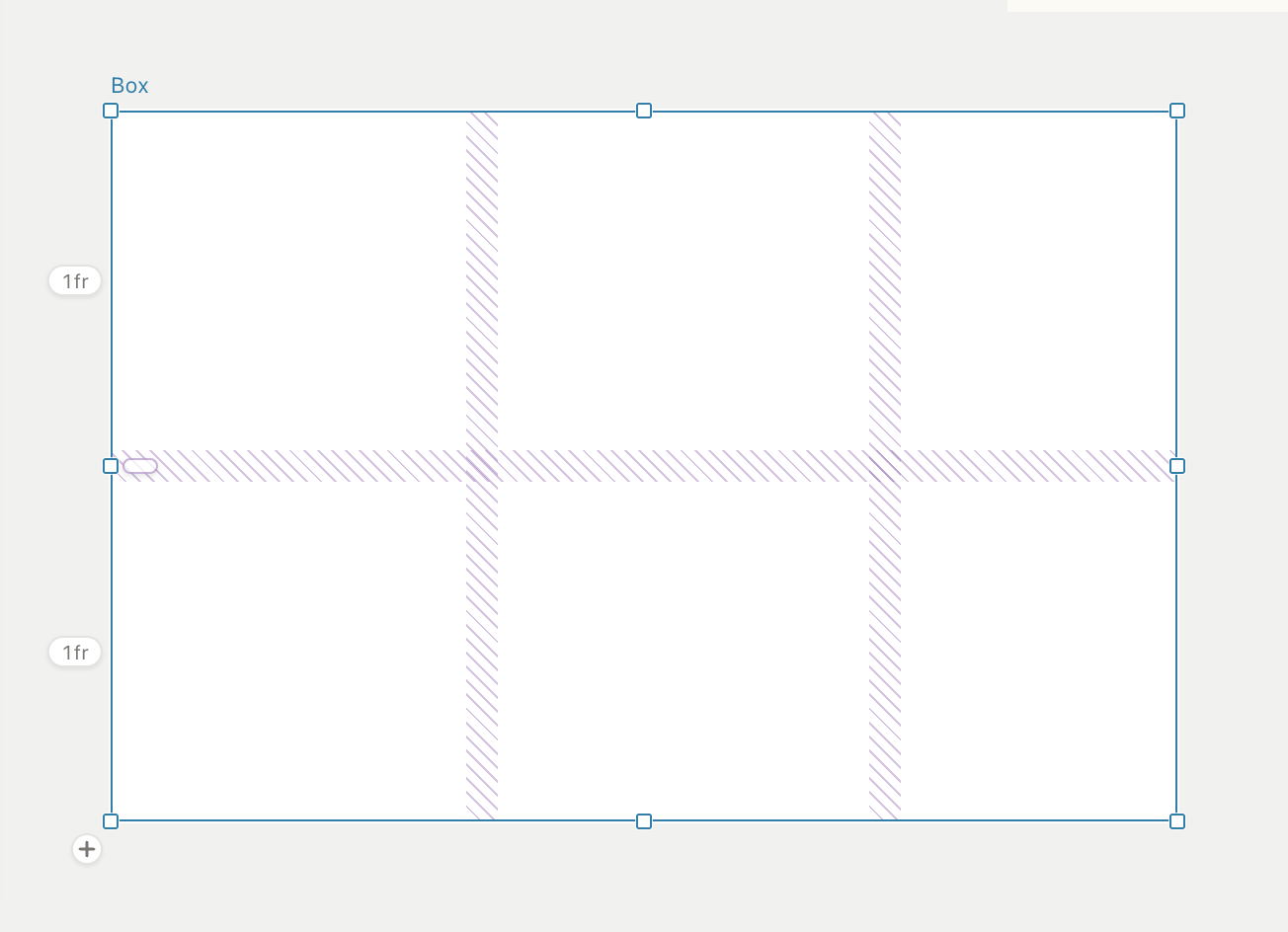
- the canvas dresses the selected grid box in direct-manipulation chrome — size chips, draggable boundaries, gap pills.
Both surfaces edit the same underlying CSS (grid-template-columns/rows, gap, …), so a drag on the canvas moves the inspector numbers live and vice versa. The chrome also appears when a child of a grid is selected — you never have to deselect your item to adjust the grid it sits in.
The canvas chrome
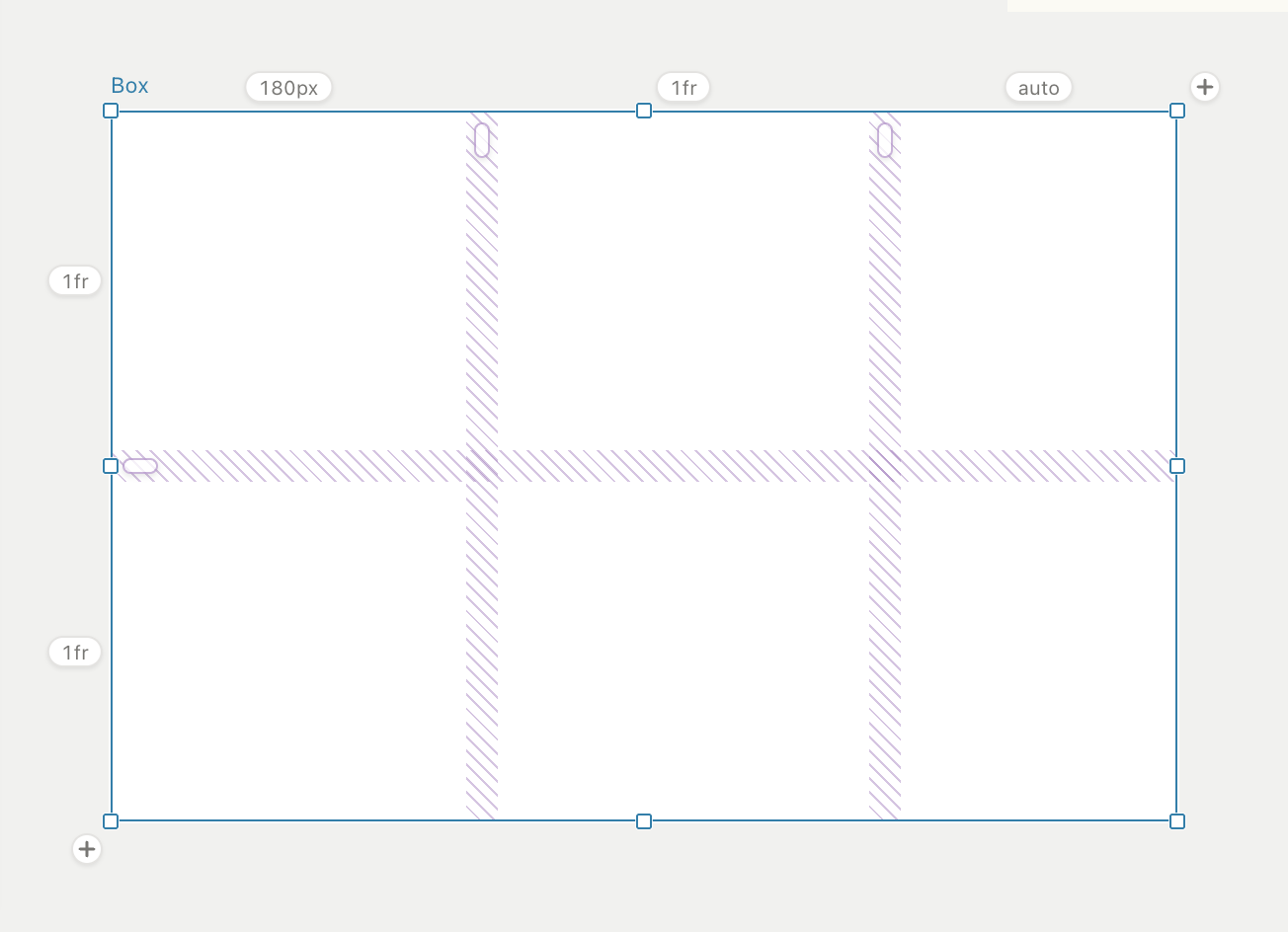
Everything here keeps a constant size on screen no matter the zoom level.
| Part | Where | What it does |
|---|---|---|
Track chips (180px, 1fr, auto) | above each column, left of each row | Show each track's authored size (mm = minmax, fit = fit-content, … = other CSS; full value in the tooltip). Hover reveals a × that removes the track. Chips hide on tracks too narrow to fit one. |
**+ chips** | past the last column / below the last row | Add a track within the box — adding never resizes it: an fr track absorbs the new one, rigid px/%/auto templates re-fit proportionally, and only a hug axis grows (by content, as any added content would). Removal via × redistributes the same way. |
| Boundary strips | centered in each gap (hatched bands) | Invisible until hover, then an accent line and a resize cursor. Drag to resize the adjacent track pair — see below. |
| Gap pills | small pills at the top/left of each gap band | Drag to scrub the axis gap. The model has one gap per axis, so all bands of that axis move together. (To create a gap from zero, use the inspector's Gap fields — at gap 0 the boundary strip owns the space.) |
Dragging a boundary
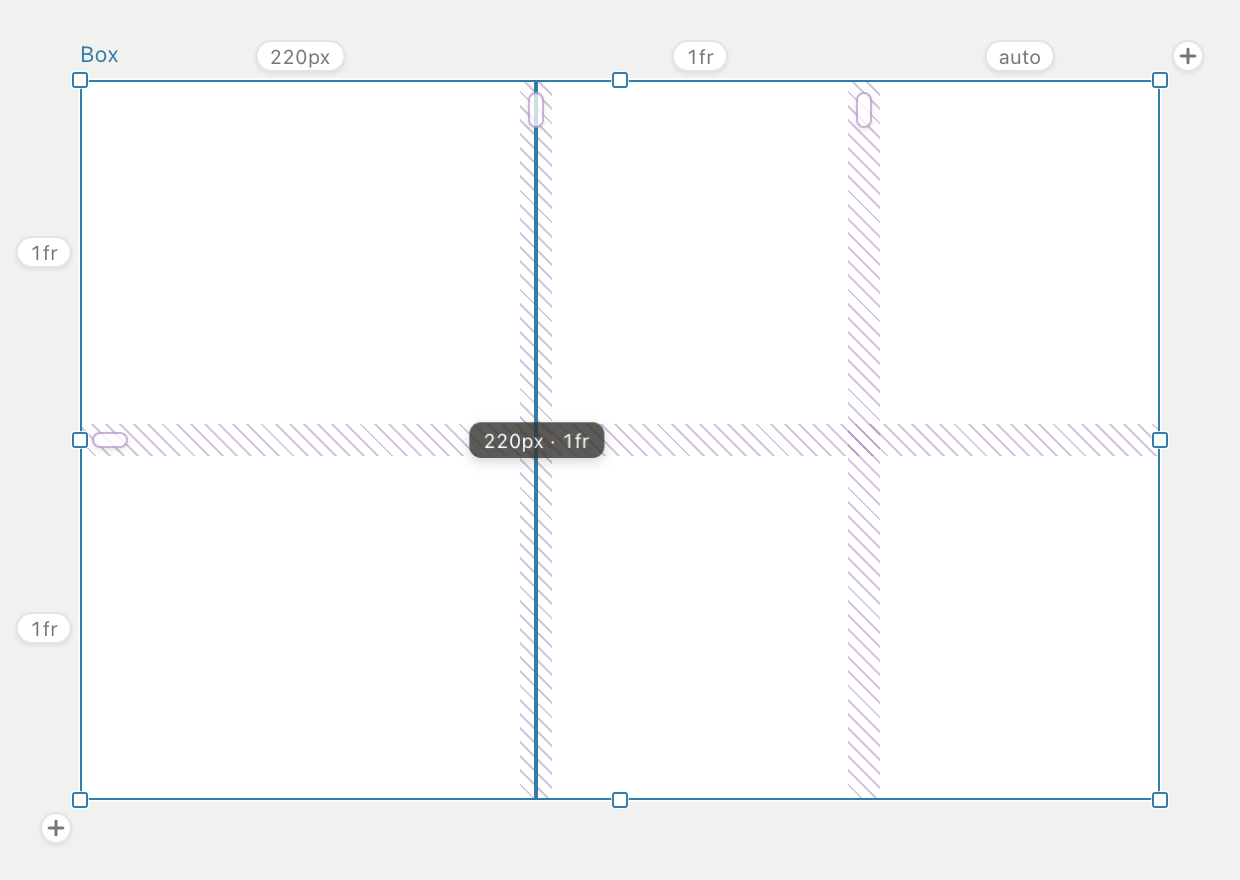
While you drag, a badge rides the boundary showing the live values of the two tracks being resized. The math is unit-aware:
- fr / fr — the pair's total fr is conserved and redistributed; other tracks stay pinned.
- px / fr (either order) — only the px side changes; the fr side reflows through free space.
- auto — converts to px at its current size the moment you drag it (the track stays px afterwards).
One drag is exactly one undo step. Escape mid-drag cancels just the drag, restoring the template to the exact string it was before — selection kept. Boundaries whose neighbors aren't plainly numeric (minmax, fit-content, calc…) show a not-allowed cursor; edit those in the inspector instead.
Hover is synchronized across surfaces
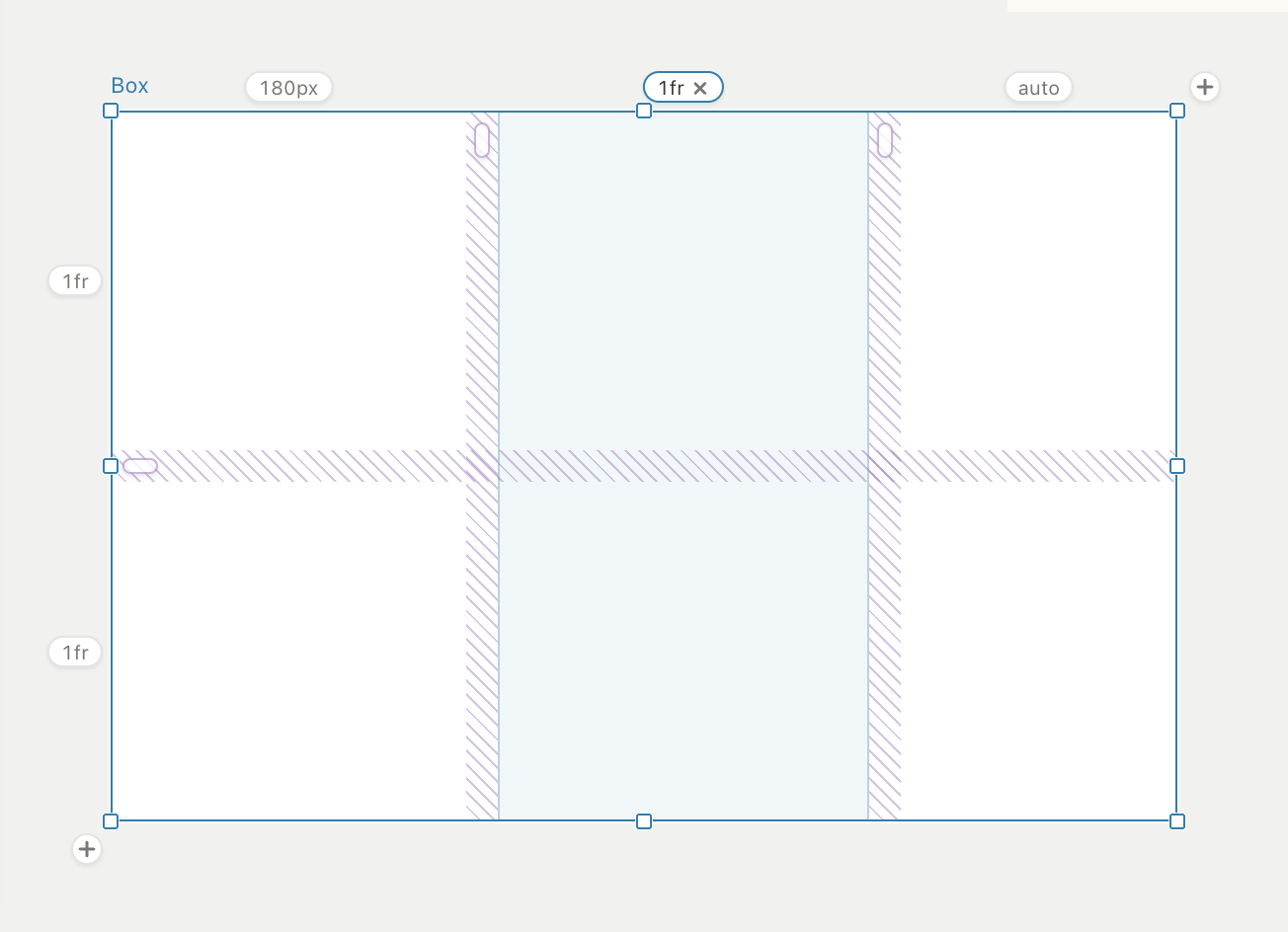
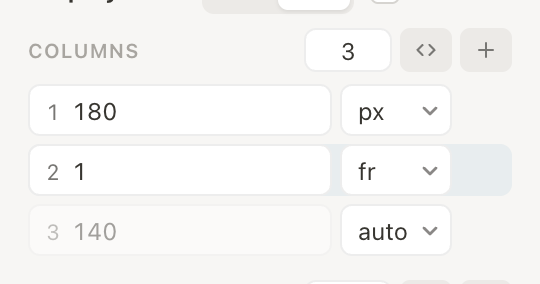
Hovering a chip tints the track's full extent on canvas and lights the matching segment in the inspector's strip; hovering a segment tints the canvas track. Useful for confirming which 1fr is which before you edit it.
Inspector: Columns & Rows
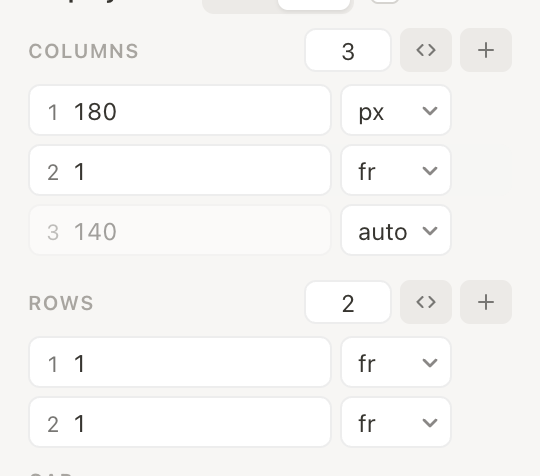
One strip per axis — the axis in miniature. Each segment is a track, sized in proportion to its real rendered extent and labeled with its authored size (same vocabulary as the canvas chips: mm = minmax, fit = fit-content, … = other CSS). Columns run across, rows stack down; a track with no room (an overflowed 1fr, an empty auto) shows as a thin stub — you can see the layout's truth before touching it.
- Click a segment to select it — the detail row below edits that track. Drag a seam between segments to resize the pair, exactly like the boundary strips on canvas (same math, same one-step undo, Escape cancels; the value badge rides along on canvas). Seams next to a minmax/fit-content/calc track don't drag — that track edits in the detail row.
- The detail row is a scrubbable number plus a unit menu for the selected track. fr / px / % unit switches convert through the track's current rendered size, so the layout doesn't jump; auto grays the field and shows the resolved px; … flips it to free CSS text — how you type
minmax(120px, 1fr)into one track. The − at the end removes the track (disabled — not hidden — at one track).
In the header:
- Count field — type, step (↑/↓, Shift ×10), or drag to scrub the number of tracks (1–100). Growing appends copies of the last track; shrinking drops from the end.
- **
<>code toggle** — swaps the strip for the rawgrid-template-*text, the full-syntax escape hatch (repeat(),auto-fill, named lines…):
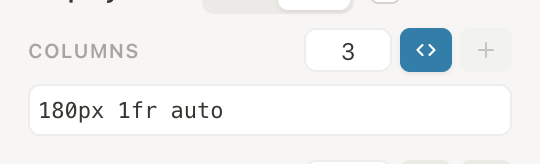
Templates the structured UI can't represent (auto-fill/auto-fit, mixed multi-selections, >100 repeats) fall back to this text form automatically — nothing becomes uneditable, it just degrades to CSS.
- **
+** — appends a duplicate of the last track (same space-sharing behavior as the canvas+chip when a single box is selected) and selects it.
Gap, Auto, Alignment
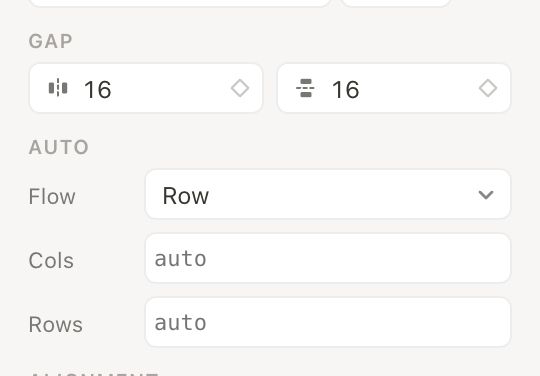
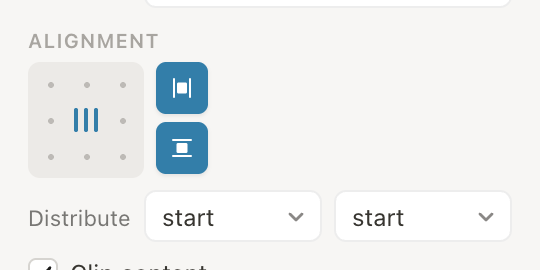
- Gap — column and row gap; the same values the canvas pills scrub.
- Auto —
grid-auto-flow(which direction unplaced items fill) and the size of implicit tracks the browser creates when items overflow the explicit ones (grid-auto-columns/rows). - Alignment — the 3×3 marker writes
justify-items+align-itemstogether: how every item sits inside its cell. The two toggles next to it stretch one axis each (stretch is the CSS default — items fill their cells); picking a dot on the marker exits stretch. - Distribute —
justify-content/align-content: how the track grid as a whole distributes inside the box when the tracks don't fill it (start, center, end, space-between…).
Why did my canvas chrome disappear?
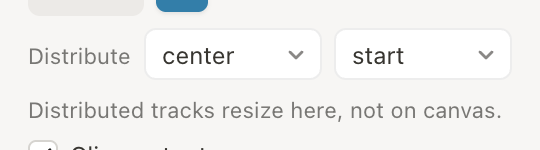
Canvas editing is enabled per axis, and an axis switches off when its Distribute is anything other than start/stretch (the browser only exposes track sizes, not positions, so the chrome would drift). The passive guides stay, and the inspector says so right under the setting that caused it. The chrome also stays off for an axis whose template doesn't parse or that has implicit tracks.
Placement — when a grid child is selected
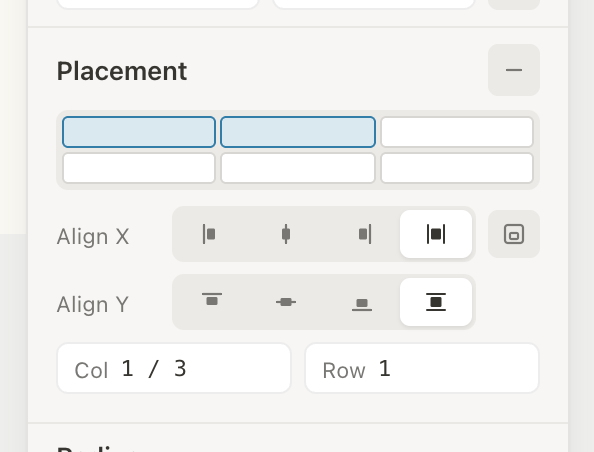
Select an item inside a grid and the Placement section appears (the parent's canvas chrome stays up too).
- Area picker — the parent's tracks in miniature. Click a cell to place the item there; drag to span a rectangle (above: columns 1–2, written as
1 / 3— CSS line numbers, end-exclusive). The − in the header clears placement back to auto flow. - Col / Row fields — raw grid-line syntax for everything the picker doesn't draw:
span 2,1 / -1, named lines. Spans and negative lines don't highlight in the picker but work fine. - Align X / Align Y — by default these edit the parent grid's items alignment (the same
justify-items/align-itemsas the grid's own Alignment group, reachable without switching selection — grid is how plain CSS aligns things: on the container).
Aligning one item differently
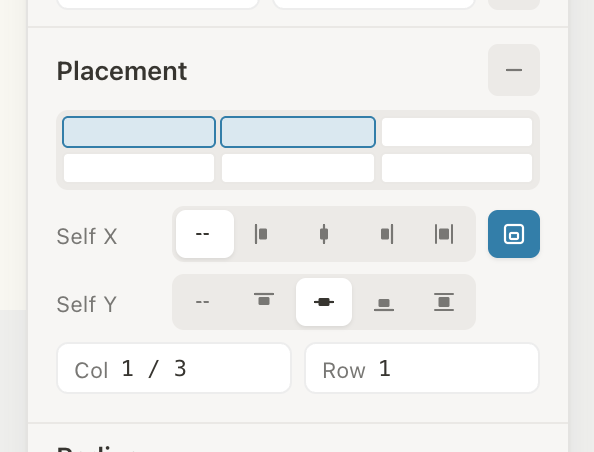
The toggle at the row's end (item-in-cell icon) switches the rows to Self X / Self Y — per-item justify-self/align-self overrides, with a dashed auto segment meaning "inherit the grid's default". Items that already carry overrides open in this mode, so the state is never hidden. Clicking the lit toggle clears the overrides and the item follows the grid again.
CSS grid has no per-row or per-column alignment property, so "align the second column's items to the bottom" is: multi-select that column's items, flip the toggle, set Self Y once — the write fans out as one undo step.
Subgrid
When a grid box itself sits in a grid, each axis header grows a subgrid toggle (the leftmost button below). Switching it on sets that axis's template to subgrid: the box adopts the parent's tracks for perfectly aligned nesting. Switching it off gives the box one 1fr per track it was rendering, so the layout doesn't jump.
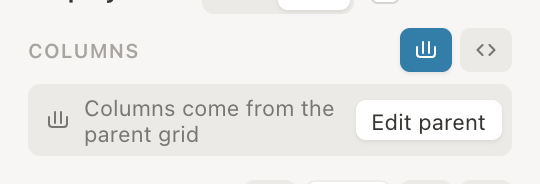
While an axis is subgridded its tracks aren't this box's to edit, so the strip is replaced by a card that says where they live — Edit parent jumps the selection to the grid that owns them. Count and + disappear; the code toggle stays as the raw-text escape hatch (that's where line-name lists like subgrid [a] [b] go).
The Layers panel marks subgridded boxes with their own icon:

Subgrid on canvas
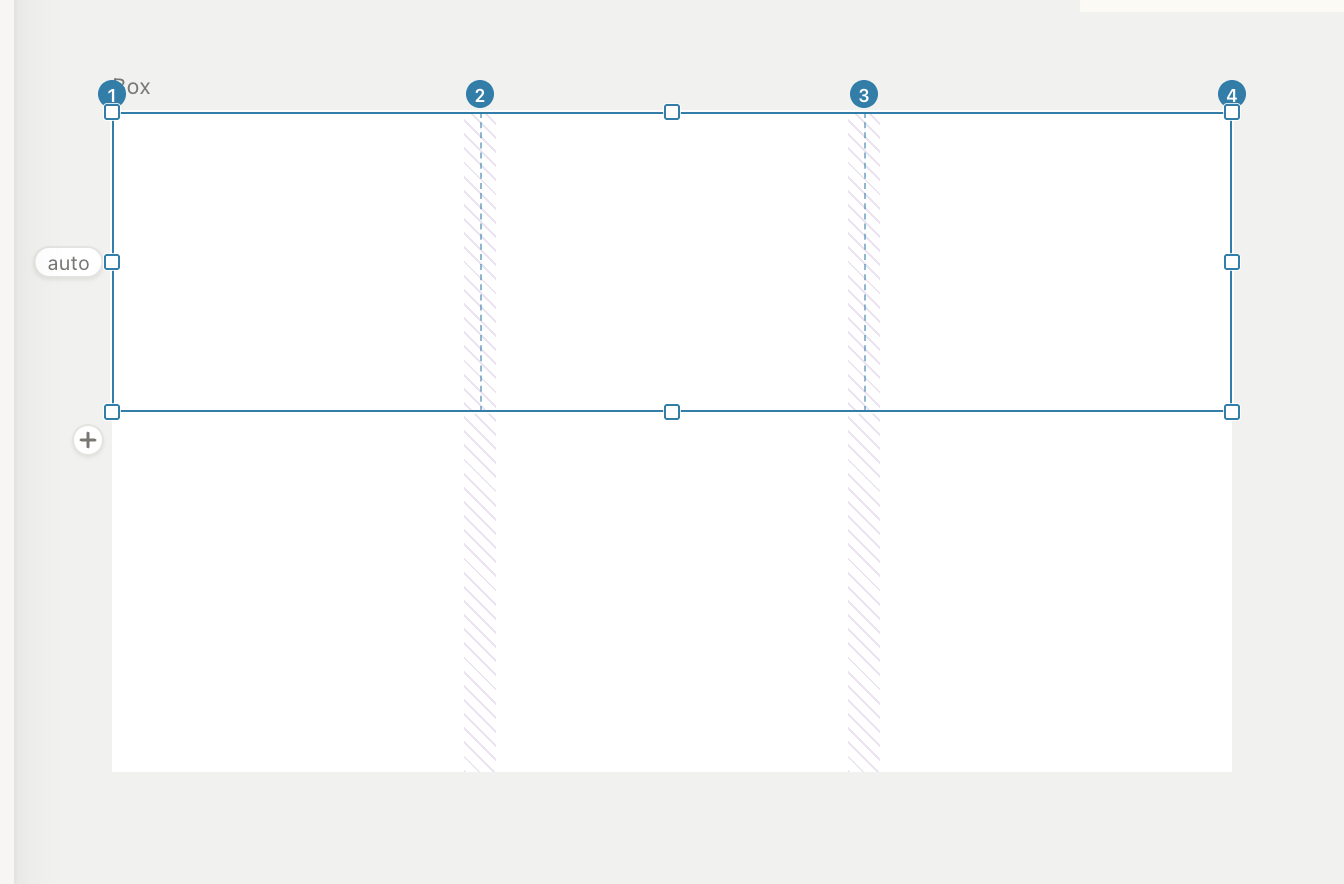
A selected subgrid renders the parent tracks it spans as its own chrome:
- dashed lines at the adopted interior boundaries;
- line numbers renumbered from 1 — these are what placement inside the subgrid counts (the area picker for its children uses the same adopted tracks);
- the parent's own guides soften to faint while the adopted chrome shows.
The adopted boundaries are still draggable — the drag is forwarded to the parent's template, with the same badge, undo, and Escape behavior as dragging on the parent itself:
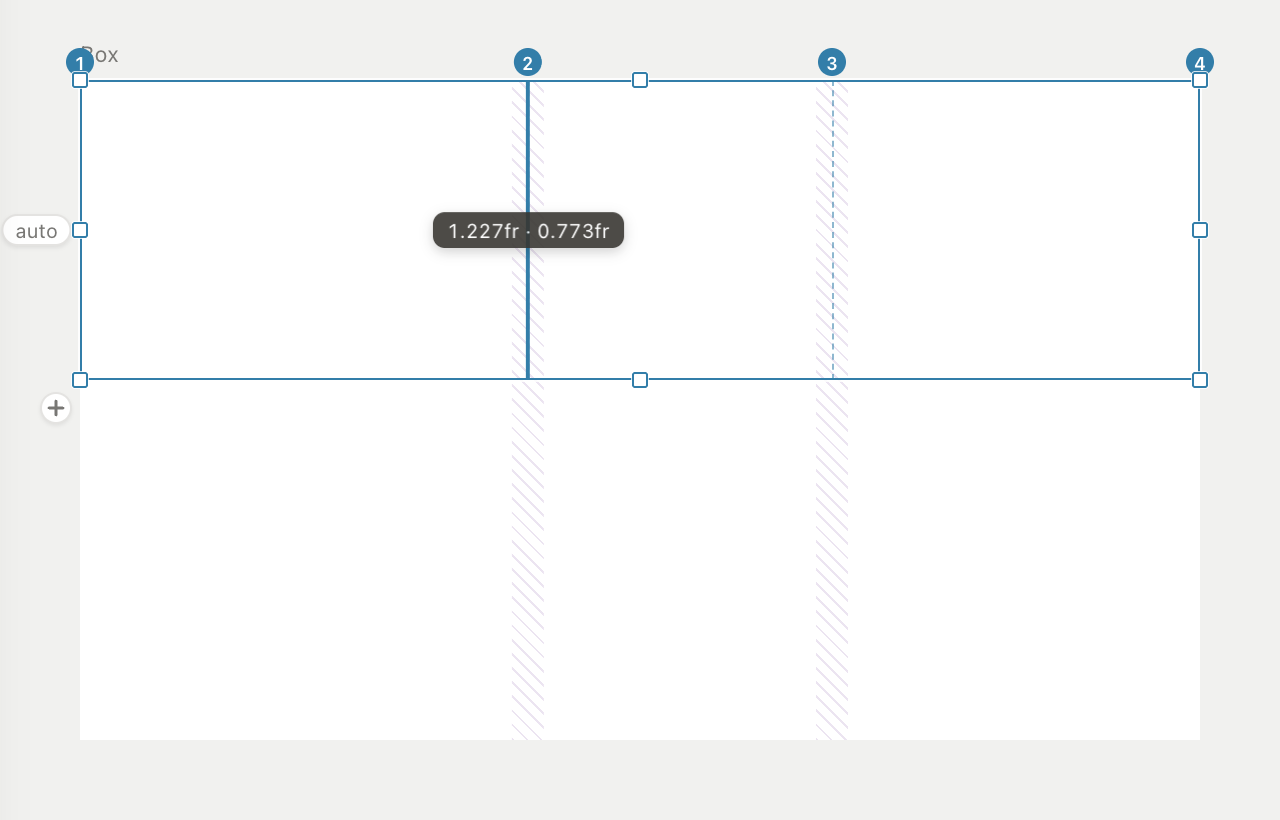
There are no chips, +, or gap pills on a subgridded axis — track structure belongs to the parent. If the subgrid is shrink-wrapped off the parent's track edges (self-alignment other than stretch), the adopted chrome stays away rather than drawing in the wrong place.
Undo, cancel, commit
The same rules everywhere:
| Action | Rule |
|---|---|
| Any drag (boundary, gap pill, scrub, area-picker paint) | Exactly one undo step for the whole gesture |
| Escape during a drag | Cancels just the drag — document restored to the exact pre-drag state, selection kept |
| Typed fields | Commit on Enter/blur, revert on Escape |
| Multi-select writes (e.g. Self alignment on a column's items) | Fan out as one undo step |